Static Blog Front-End Recipes: Fonts, Caching, Copy Buttons
Seven front-end recipes from brennan.day in plain JavaScript and CSS: system font stacks, thumbnails with `@11ty/eleventy-img`, content-hashed CSS, a code copy button, image alt-text tooltips, a cursor toggle, and dark-mode SVG inversion.
- By
- Brennan Kenneth Brown
- Published
- Reading time
- 3 minutes
- Level
- Intermediate
- You need
- A static site you can edit, ideally Eleventy
- Basic JavaScript and CSS
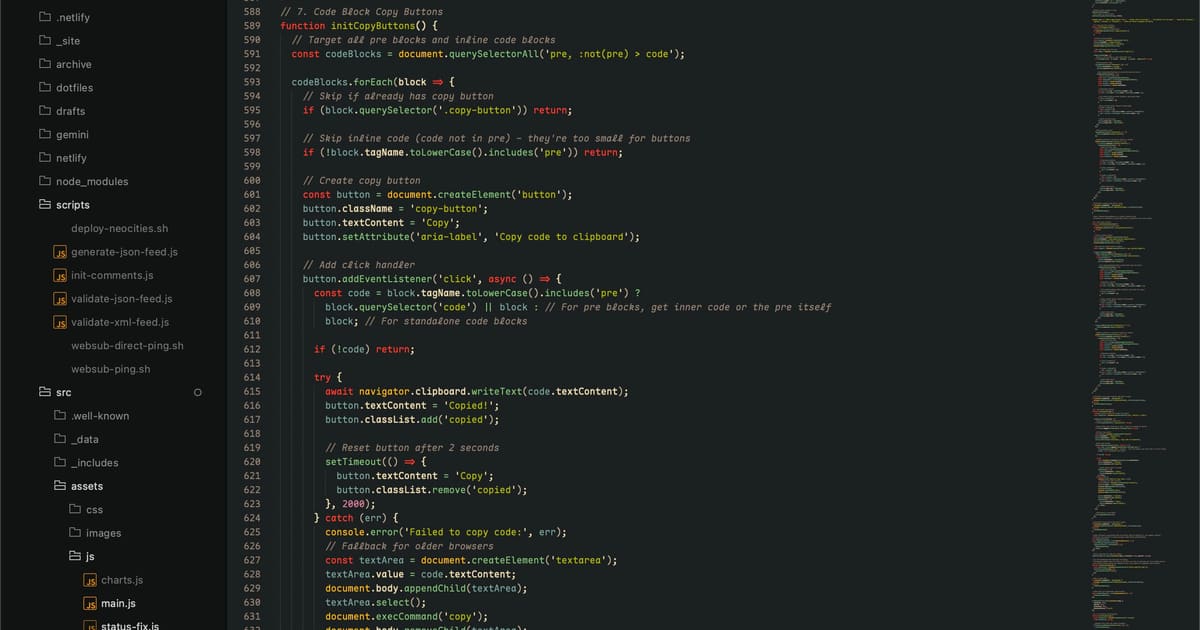
main.js open in Sublime Text 4 (of course, with the Gruvbox colour scheme) with the font Maple MonoThese seven front-end recipes for a static blog come from brennan.day. Each uses plain JavaScript or CSS and needs no framework. The first three reduce requests and let browsers cache more; the rest add small features. The code assumes an Eleventy site, but most snippets work on any static site.
How do I replace Google Fonts with system fonts?
I dropped Google Fonts and switched to system font stacks from Modern Font Stacks. This removed three external HTTP requests and about 750ms from first paint.
The stacks are:
- Geometric Humanist for headings (Avenir, Montserrat, Corbel, sans-serif fallbacks)
- Old Style Serif for body text (Iowan Old Style, Palatino Linotype, URW Palladio L, serif fallbacks)
- Monospace Code for code/metadata (ui-monospace, Cascadia Code, Menlo, Consolas, monospace fallbacks)
The performance gain was worth the change in look.
/* System font stacks for performance */
:root {
  /* Geometric Humanist for headings */
  --font-heading: "Avenir Next", Avenir, Montserrat, Corbel,
    "URW Gothic", source-sans-pro, system-ui, sans-serif;

  /* Old Style Serif for body text */
  --font-body: 'Iowan Old Style', 'Palatino Linotype',
    'URW Palladio L', P052, serif;

  /* Monospace Code */
  --font-mono: ui-monospace, 'Cascadia Code', 'Source Code Pro',
    Menlo, Consolas, 'DejaVu Sans Mono', monospace;
}

body {
  font-family: var(--font-body);
  font-weight: 400;
}

h1, h2, h3, h4, h5, h6 {
  font-family: var(--font-heading);
  font-weight: 900; /* Heavy weight for visual impact */
}

code, pre {
  font-family: var(--font-mono);
}
How do I add image thumbnails to an archive page?
I don't paginate. The homepage shows recent posts, and an archive page lists every post. I made the archive more visual by adding:
- Featured image thumbnails using
@11ty/eleventy-imgfor automatic optimization - A word count for each post
- Comment count badges
- Monthly post counts in the navigation
The snippet below covers only the thumbnails. It uses an async shortcode rather than a filter to avoid accessing template content too early:
// Archive page thumbnail generation with @11ty/eleventy-img
const Image = require("@11ty/eleventy-img");

eleventyConfig.addAsyncShortcode("thumbnail", async function(src, alt) {
  if (!src) return '';

  // Generate optimized thumbnail
  let metadata = await Image(src, {
    widths: [200, 400],
    formats: ["webp", "jpeg"],
    outputDir: "./_site/assets/thumbnails/",
    urlPath: "/assets/thumbnails/"
  });

  let imageAttributes = {
    alt,
    sizes: "200px",
    loading: "lazy",
    decoding: "async"
  };

  return Image.generateHTML(metadata, imageAttributes);
});
How do I split CSS into modules and bust the cache?
Instead of one massive stylesheet, I split my vanilla CSS into 11 separate files organized by purpose:
01-variables.css: CSS custom properties and theme variables02-base.css: Reset and base element styles03-typography.css: Font families, headings, and text styles04-layout.css: Grid systems and layout containers05-content.css: Article and post content styles06-forms.css: Form inputs and interactive elements07-interactive.css: Buttons, links, and hover states08-features.css: Site-specific features and components09-footer.css: Footer-specific styles10-utilities.css: Helper classes and utilities11-responsive.css: Media queries and responsive adjustments
To ensure browsers cache these files properly while invalidating the cache when I make updates, I created an assetHash filter that generates an MD5 hash of each file's contents:
// Cache busting with content-based hashing
const crypto = require('crypto');
const fs = require('fs');

eleventyConfig.addFilter("assetHash", (assetPath) => {
  try {
    const fullPath = path.join(__dirname, 'src', assetPath);
    if (fs.existsSync(fullPath)) {
      const fileContents = fs.readFileSync(fullPath, 'utf8');
      const hash = crypto.createHash('md5')
        .update(fileContents)
        .digest('hex')
        .substring(0, 8);
      return `${assetPath}?v=${hash}`;
    }
  } catch (error) {
    console.warn(`Could not generate hash for ${assetPath}:`, error.message);
  }
  return assetPath;
});
In the base template, each CSS file is loaded with the hash:
<!-- Non-critical CSS for Deferred loading -->
<link rel="stylesheet"
      href="{{ '/assets/css/01-variables.css' | assetHash }}"
      media="print"
      onload="this.media='all'">
<link rel="stylesheet"
      href="{{ '/assets/css/02-base.css' | assetHash }}"
      media="print"
      onload="this.media='all'">
<!-- ... and so on for each file -->
The media="print" onload="this.media='all'" technique defers CSS loading without blocking render, and the hash ensures that when I update any file, browsers fetch the new version immediately.
How do I add a copy button to code blocks?
Every code block gets an automatic copy button. The script uses the Clipboard API, with a document.execCommand fallback for older browsers. You will need your own .copy-button CSS, which is not included here.
// Automatic copy buttons for code blocks
function initCopyButtons() {
  const codeBlocks = document.querySelectorAll('pre');

  codeBlocks.forEach(block => {
    if (block.querySelector('.copy-button')) return;

    const button = document.createElement('button');
    button.className = 'copy-button';
    button.textContent = 'Copy';
    button.setAttribute('aria-label', 'Copy code to clipboard');

    button.addEventListener('click', async () => {
      const code = block.querySelector('code') || block;

      try {
        // Modern Clipboard API
        await navigator.clipboard.writeText(code.textContent);
        button.textContent = 'Copied!';
        button.classList.add('copied');

        setTimeout(() => {
          button.textContent = 'Copy';
          button.classList.remove('copied');
        }, 2000);
      } catch (err) {
        // Fallback for older browsers
        const textArea = document.createElement('textarea');
        textArea.value = code.textContent;
        document.body.appendChild(textArea);
        textArea.select();
        document.execCommand('copy');
        document.body.removeChild(textArea);

        button.textContent = 'Copied!';
        button.classList.add('copied');
        setTimeout(() => {
          button.textContent = 'Copy';
          button.classList.remove('copied');
        }, 2000);
      }
    });

    block.appendChild(button);
  });
}

// Initialize on load and watch for dynamic content
initCopyButtons();
const copyButtonObserver = new MutationObserver(() => {
  setTimeout(initCopyButtons, 100);
});
copyButtonObserver.observe(document.body, { childList: true, subtree: true });
How do I show image alt text as a tooltip?
Every image with alt text displays a tooltip on hover. This implementation uses requestAnimationFrame to batch DOM reads and writes, preventing layout thrashing and keeping performance smooth.
// Image tooltip with performance optimization
function initImageTooltips() {
  const tooltip = document.createElement('div');
  tooltip.className = 'image-tooltip';
  tooltip.setAttribute('role', 'tooltip');
  document.body.appendChild(tooltip);

  const images = document.querySelectorAll('img[alt]');

  images.forEach(img => {
    // Skip empty or placeholder alt text
    if (!img.alt.trim() || img.alt === 'image') return;

    img.addEventListener('mouseenter', (e) => {
      tooltip.textContent = img.alt;
      tooltip.classList.add('visible');

      // Batch DOM reads and writes with requestAnimationFrame
      requestAnimationFrame(() => {
        // Read phase, all measurements together
        const rect = img.getBoundingClientRect();
        const tooltipRect = tooltip.getBoundingClientRect();
        const scrollY = window.scrollY;
        const scrollX = window.scrollX;

        // Calculate position
        let top = rect.top - tooltipRect.height - 10;
        let left = rect.left + (rect.width - tooltipRect.width) / 2;

        // Keep within viewport
        if (top < scrollY) {
          top = rect.bottom + 10;
        }

        // Write phase, all DOM updates together
        tooltip.style.top = `${top}px`;
        tooltip.style.left = `${left}px`;
      });
    });

    img.addEventListener('mouseleave', () => {
      tooltip.classList.remove('visible');
    });
  });
}
Batching reads before writes prevents forced reflows. It is the same technique I used for the layout issues described in improving a Lighthouse score. Call initImageTooltips() once the DOM has loaded, and style .image-tooltip (including .visible) yourself.
How do I let visitors turn off a custom cursor?
I added the Tomatic cursor set by JefTriForce for a retro feel. Several people commenting from other sites (Reddit, Lobste.rs) said they dislike custom cursors, so I added a footer checkbox with id="cursor-toggle" to disable them. The choice is saved in localStorage. Call initCursorToggle() on page load:
function initCursorToggle() {
  const cursorToggle = document.getElementById('cursor-toggle');
  if (!cursorToggle) return;

  // Load saved preference
  const cursorEnabled = localStorage.getItem('customCursor') !== 'false';
  cursorToggle.checked = cursorEnabled;
  applyCursorSetting(cursorEnabled);

  // Handle toggle changes
  cursorToggle.addEventListener('change', (e) => {
    const isEnabled = e.target.checked;
    localStorage.setItem('customCursor', isEnabled);
    applyCursorSetting(isEnabled);
  });
}

function applyCursorSetting(enabled) {
  const body = document.body;
  const style = document.getElementById('cursor-toggle-styles') || document.createElement('style');
  style.id = 'cursor-toggle-styles';

  if (enabled) {
    // Remove any override styles
    style.textContent = '';
  } else {
    // Add styles to override custom cursors
    style.textContent = `
      * {
        cursor: auto !important;
      }
    `;
  }

  if (!style.parentNode) document.head.appendChild(style);
}
How do I invert SVG icons in dark mode?
The XXIIVV webring button on my site is an icon instead of a text link, so I handle theme switching with CSS filters instead of duplicating images. This assumes your dark theme adds a .dark-mode class to an ancestor element:
/* Dark mode webring icon handling with CSS filters */
.webring-icon {
  filter: none;
  transition: filter 0.3s ease;
}

/* Invert icon colors in dark mode */
.dark-mode .webring-icon {
  filter: invert(1) hue-rotate(180deg);
}

/* Custom styling for webring navigation */
.webring-item {
  display: flex;
  align-items: center;
  gap: 1rem;
  padding: 0.5rem;
  border: 1px solid var(--border);
  border-radius: 4px;
}
I use the same inversion for the hero doodle and the signature on the homepage.